How to Verify Google Business Profile Without Postcard (2026 Guide)
Learn how to verify Google Business Profile without postcard using phone, email, video, or instant verification. Fast, step-by-step 2026 methods for local businesses.

How to Verify Google Business Profile Without Postcard in 2026
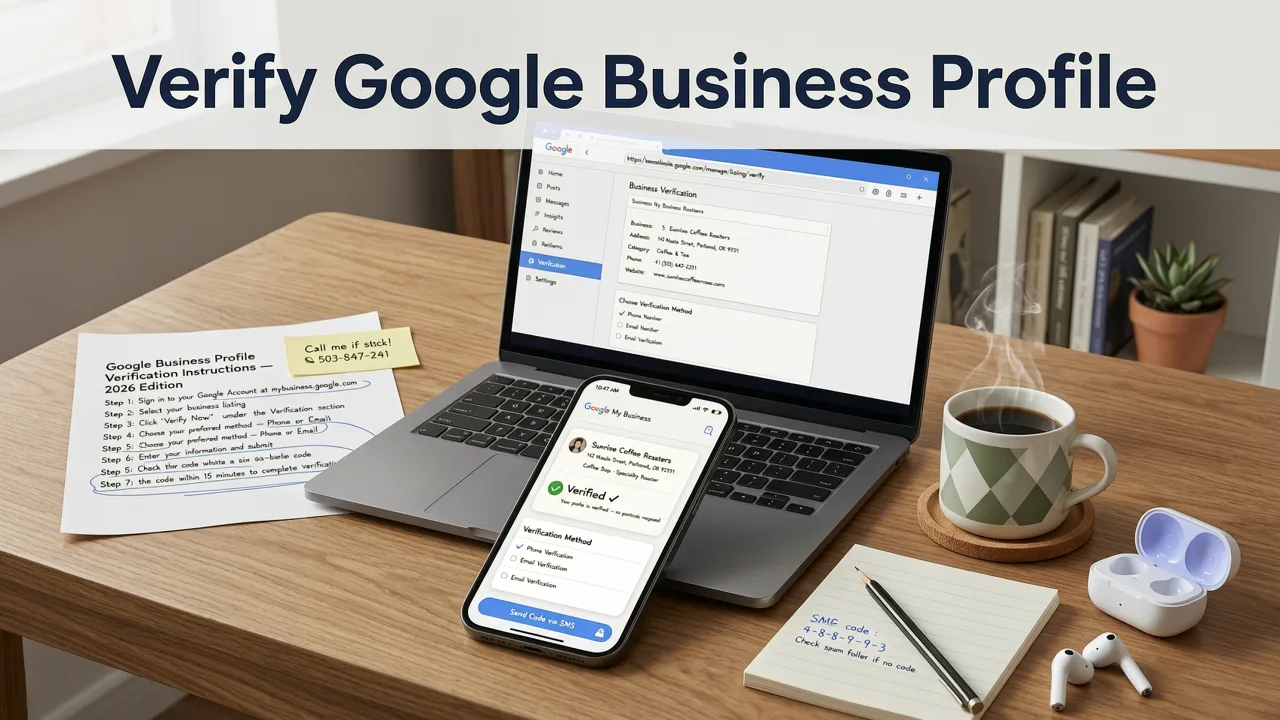
Waiting weeks for a Google postcard is one of the most frustrating bottlenecks in local SEO — and in 2026, most businesses no longer need to wait. The good news: Google now offers several alternative verification methods, including phone, email, video, and even instant verification for eligible profiles. If you want to rank in the Local Pack, appear on Google Maps, and drive foot traffic, verifying your Google Business Profile (GBP) quickly is step one.
This guide walks you through every legitimate way to verify Google Business Profile without postcard, explains why the postcard method still exists, and shows you how to request an alternative when the option isn't showing up. Whether you're a new business or re-verifying after a suspension, you'll have a clear action plan by the end.
Why Google Business Profile Verification Matters in 2026
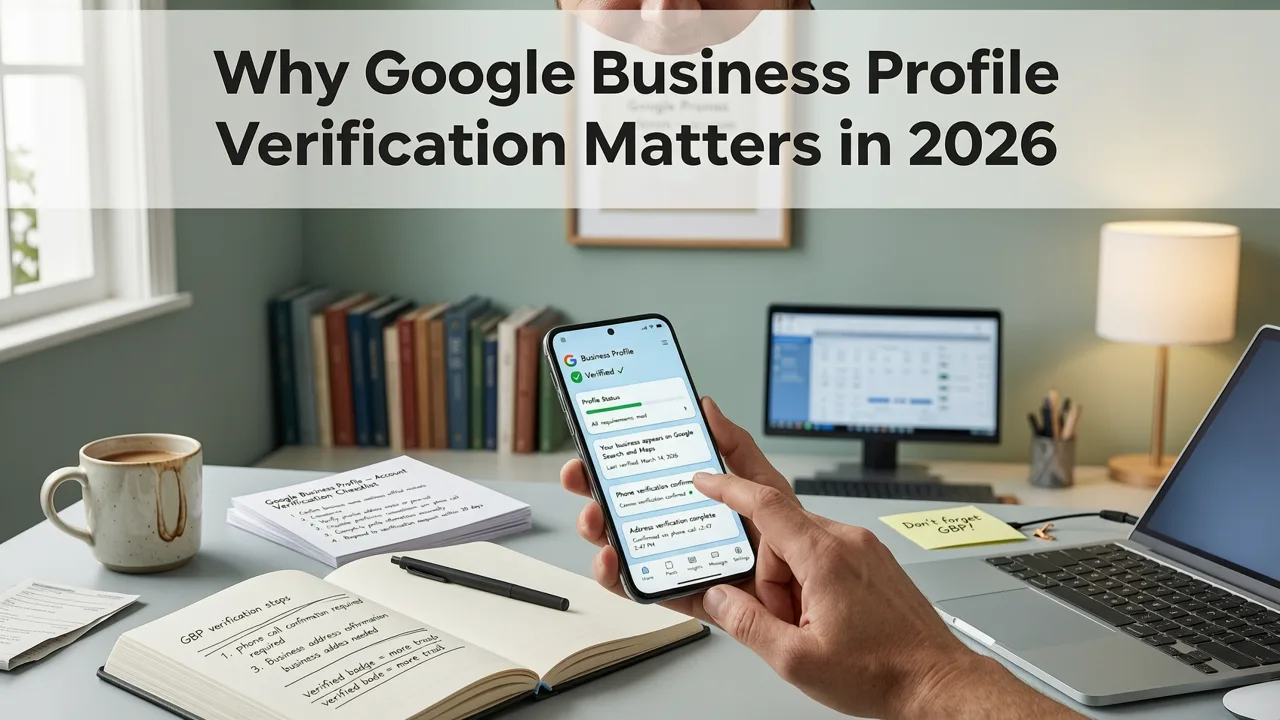
Google has tightened its trust and quality signals around local listings. An unverified profile is essentially invisible for local search queries, meaning your competitors who completed verification are capturing the calls, directions, and website clicks you should be getting.
According to Google's own Search Central documentation, verification confirms that you have the authority to manage a business listing. Without it, you cannot:
- Respond to customer reviews
- Post updates, offers, or events
- View search and maps insights
- Manage business hours, categories, or attributes
- Appear in the Local Pack or Local Finder
If you're building a local presence, verification is non-negotiable. Pair it with a solid local SEO checklist for small business to make sure every other ranking signal is dialed in as well.
Verification Methods Google Offers in 2026
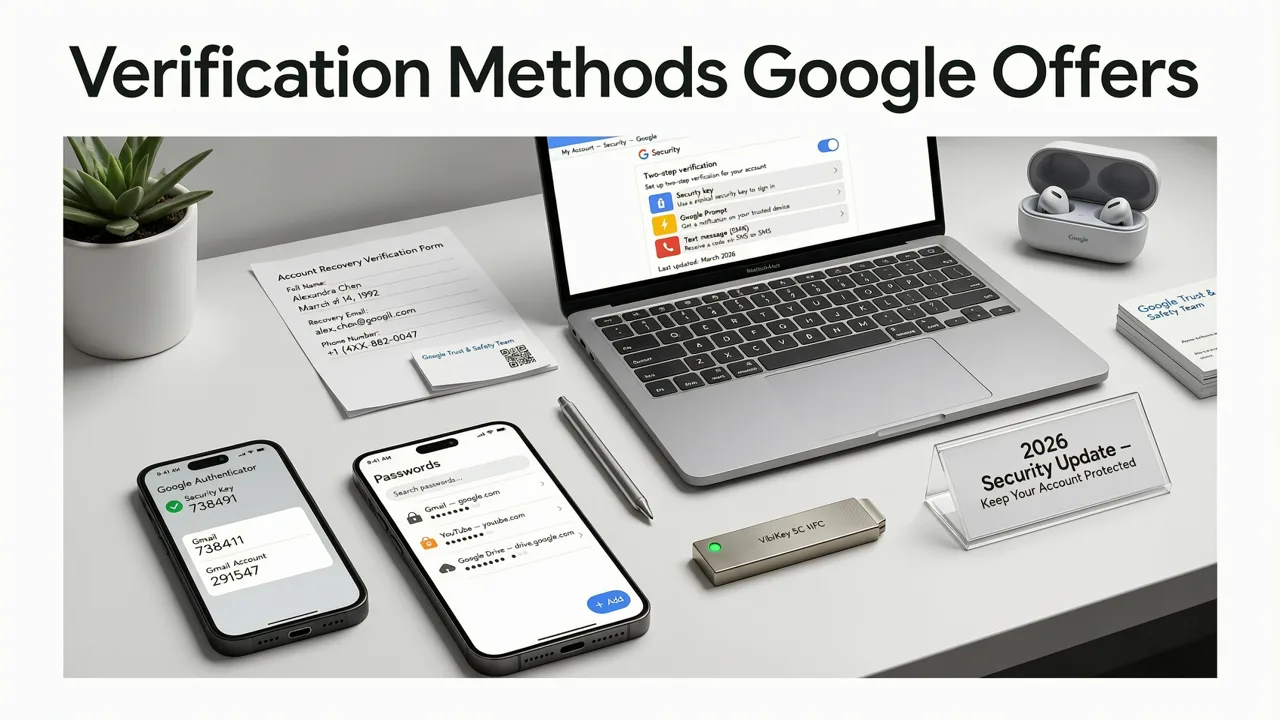
Google assigns verification methods based on your business category, location, and profile history. Not every method is available to every business, but most profiles now have access to at least one non-postcard option.
| Method | Speed | Availability | Best For |
|---|---|---|---|
| Phone verification | Instant | Select businesses | Service-area businesses, established brands |
| Email verification | Minutes | Businesses with matching domain email | Agencies, SaaS, e-commerce with storefronts |
| Video verification | 5 business days | Most unverified profiles | Businesses with no other option showing |
| Instant verification | Immediate | Website-verified with Google Search Console | Businesses that already own their domain |
| Postcard by mail | 5–14 days | Default fallback | Businesses with no other method available |
Method 1: Instant Verification via Google Search Console
If you have already verified your business website with Google Search Console using the same Google account you're using for your Business Profile, you may qualify for instant verification. This is the fastest path and requires zero waiting.
Steps for Instant Verification
- Sign in to Google Business Profile with the Google account tied to your Search Console property.
- Enter your business name exactly as it appears on your website.
- If eligible, Google will display an "Verify" button without asking for a postcard.
- Click it — your profile is verified immediately.
Critical detail: The domain in Search Console must match the website URL you enter in your GBP. If they don't align, instant verification won't trigger.
Method 2: Phone Verification
Phone verification lets you receive an automated call or text with a verification code. Google has expanded this method significantly in 2026, especially for businesses with a consistent online presence.
How to Request Phone Verification
- Go to your Google Business Profile dashboard.
- Select "Verify now."
- If phone verification is available, you'll see the option to receive a code via call or SMS.
- Enter the code in the prompt to complete verification.
If the phone option doesn't appear automatically, click "Verify another way" or "Get help verifying" to request it. Google may ask you to confirm your business phone number matches the one listed publicly on your website and other directories.
Method 3: Email Verification
Email verification sends a code to the business email address associated with your profile. This method works best when your email domain matches your website domain (for example, info@yourbusiness.com).
Steps to Verify by Email
- In your GBP dashboard, select "Verify now."
- Choose the email option if displayed.
- Check the inbox of your business email for a message from Google.
- Click the verification link or enter the code provided.
If you don't see the email option, make sure your business email is entered correctly in the profile and that it uses a custom domain rather than a generic provider like Gmail or Yahoo.
Method 4: Video Verification
Video verification has become Google's primary fallback method in 2026 for businesses that don't qualify for phone, email, or instant verification. It requires you to record a short, continuous video that proves your business is real and that you are authorized to manage it.
What to Show in Your Verification Video
- Your location: Start outside your business or at your service-area address showing street signs, building numbers, or nearby landmarks.
- Access proof: Show yourself unlocking the door or accessing the workspace with a key or keypad.
- Equipment and operations: Pan across equipment, tools, inventory, or branded materials that demonstrate the business is active.
- Business documents: Hold up a business license, utility bill, or tax document that matches the business name and address on your profile.
Tips for a Successful Video Submission
Keep the video under 10 minutes. Shoot in good lighting without background music. Don't edit the footage — Google rejects edited videos. If your video is rejected, you can resubmit with clearer evidence. Most video verifications are reviewed within 5 business days.
Method 5: Requesting Verification by Phone or Email When No Options Appear
If your profile only shows the postcard option, you can still request an alternative method through Google's support tools.
How to Request an Alternative
- Open your Google Business Profile and click "Verify now."
- When only postcard appears, select "Get help verifying" or "Verify another way."
- Follow the prompts to request phone or email verification.
- Google will review your request — this can take 1 to 5 business days.
Be patient and make sure your profile information is 100% accurate before requesting. Mismatched addresses, phone numbers, or business names are the most common reasons Google denies alternative verification requests.
Common Reasons Google Only Offers Postcard Verification
If you're stuck with the postcard as your only option, one of these issues is likely the cause:
- New or unestablished business: Google has no prior data to confirm your legitimacy.
- Information inconsistencies: Your website, social profiles, or directories list a different address or phone number.
- Suspicious activity: Multiple profile creations or edits triggered a trust review.
- Service-area business without a visible storefront: Google may require stronger proof of existence.
- Previous verification attempts failed: Rejected videos or expired codes can limit future options.
Fix these issues before re-requesting. Consistency across your online presence is a core pillar of SEO for small business in 2026, and Google's verification system reflects that.
What to Do If Your Postcard Never Arrives
Postcards can take up to 14 days, and sometimes they never arrive at all. If you've waited the full window:
- Do not request another postcard immediately — requesting multiple postcards can delay the process further.
- Wait at least 14 days from your most recent request.
- Then use the "Get help verifying" option to request a different method.
- Provide supporting documentation if prompted (business license, utility bill, or tax filing).
How to Avoid Verification Problems in the First Place
The best way to skip the postcard is to set your profile up correctly from the start. Here's a short checklist:
- Use the same Google account for Search Console and your Business Profile.
- Enter your business name, address, and phone number exactly as they appear on your website.
- Choose the most accurate primary category for your business.
- Use a professional email address tied to your domain.
- Avoid creating multiple profiles for the same location.
These steps align with the structured data best practices Google recommends and help your profile pass verification without friction.
Verification After a Suspension or Reinstatement
If your profile was suspended and you've successfully reinstated it, Google will typically require you to re-verify. In most 2026 cases, reinstated profiles are asked to complete video verification because Google wants fresh proof that the business is legitimate and compliant with its guidelines.
Prepare the same documentation and video evidence described above. If your reinstatement was denied, resolve the underlying policy issue — usually misleading business information or a prohibited category — before reapplying.
Should You Hire an Agency to Handle Verification?
Google does not allow third parties to verify a profile on your behalf. However, an experienced SEO agency can ensure your profile data is consistent, guide you through the correct verification method, and help you avoid suspension triggers. If you're evaluating the cost of professional help, our SEO agency pricing guide for 2026 breaks down what to expect.
For businesses on a tighter budget, affordable SEO services for small business can still deliver the foundational local optimization you need to rank after verification is complete.
Final Thoughts: Get Verified, Then Get Ranking
Verifying your Google Business Profile without a postcard is entirely possible in 2026 — you just need to know which method to request and how to prepare your evidence. Instant verification through Search Console is the fastest route, followed by phone and email for eligible businesses. Video verification is the reliable fallback for everyone else.
Once you're verified, the real work begins: optimizing your categories, collecting reviews, publishing posts, and building local relevance. Verification is the door — local SEO is what gets you the customers walking through it.
Ready to turn your verified profile into a traffic and lead engine? Start with a complete local SEO audit and make sure every ranking signal is working in your favor.
Frequently Asked Questions
Can I verify my Google Business Profile without waiting for a postcard?
Yes. In 2026, Google offers several alternatives to postcard verification, including instant verification through Google Search Console, phone verification, email verification, and video verification. The methods available to you depend on your business category, location, and profile history.
Why doesn't my Google Business Profile show phone or email verification?
Google assigns verification methods based on data it has about your business. If your profile is new, has inconsistent information across the web, or has had previous verification issues, Google may only show the postcard option. Ensuring your business name, address, phone number, and website are consistent can unlock faster methods.
How long does video verification for Google Business Profile take?
Most video verifications are reviewed within 5 business days. Make sure your video is unedited, well-lit, and shows your location, access to the business, equipment or operations, and supporting documents like a business license or utility bill.
Does instant verification require a website?
Yes. Instant verification works when you have already verified your business website with Google Search Console using the same Google account tied to your Business Profile. The domain in Search Console must match the website URL in your GBP listing.
Can someone else verify my Google Business Profile for me?
No. Google does not allow third parties to verify a profile on your behalf. You must complete the verification yourself, though an SEO agency can help ensure your profile data is accurate and guide you through the correct method.
Related Articles


Explore more practical SEO Services and appraisal guides.
View all articles